4-5. Re-ordering layers in the UI
If you have followed along from Tutorial 3, the layers in your Land Cover interface group may alternate between World Cover layers and other WMS layers. Re-ordering them into related sets makes the group easier to scan and use.
-
On the Layers tab, expand the Land Cover interface group and review the current order of its layer cards.
-
Decide on a logical order. For example, place the World Cover layers together in chronological order, followed by the other WMS layers.
-
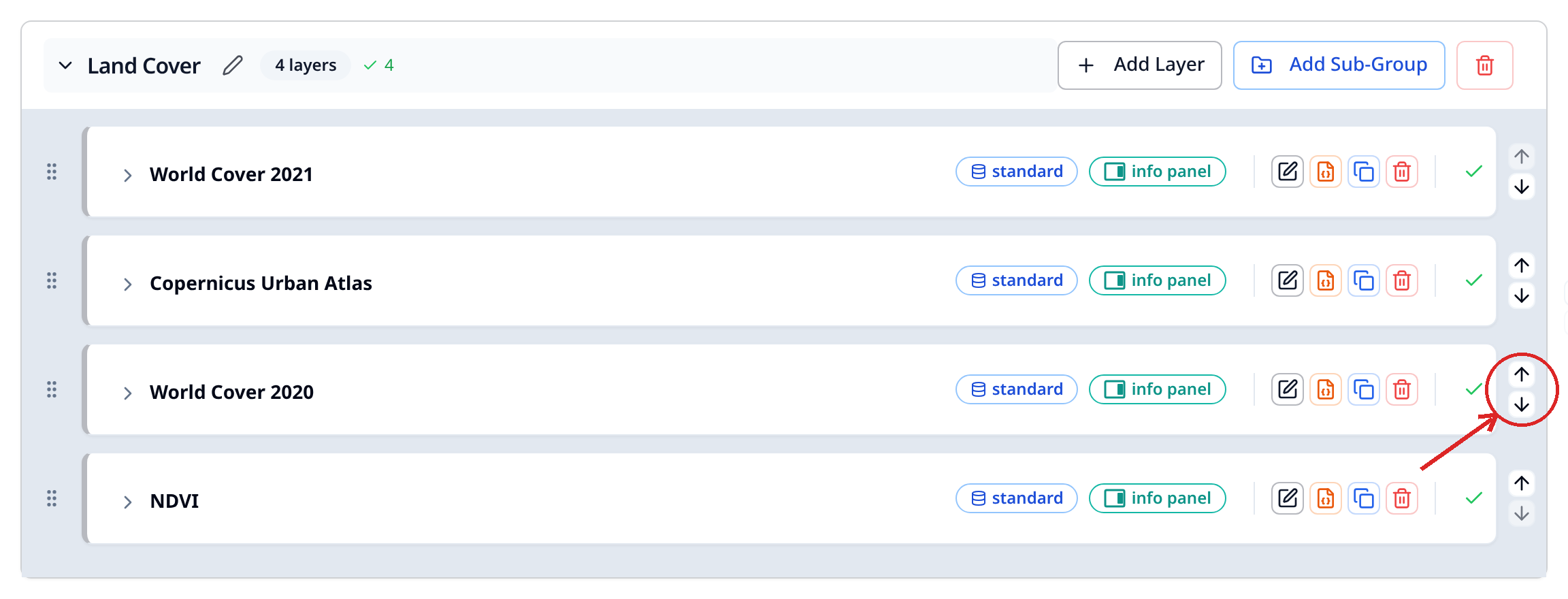
Move each layer into place using either method:
- Select the up or down arrow beside a layer card to move it one position at a time.
- Drag the layer by its drag handle and drop it in the required position.
-
Check that the Land Cover group now shows related layers together and that the World Cover layers are in chronological order.
-
Export your configuration to save the revised layer order.
Tip
The order in the Layers tab controls how layers are presented in the Explorer. It is separate from map stacking, which is configured in the Draw order tab.