JSON config
The JSON Config tab exposes the raw configuration document so you can view and edit it directly, rather than going through the form-based tabs. Use it to inspect the current state, copy values into documentation, or paste in a configuration to load.
Advanced users only
Direct JSON editing bypasses the guard-rails of the visual editors and is best left to authors who are already comfortable with the configuration format and JSON syntax. A single misplaced comma or unknown field will cause validation to fail, and structural mistakes can leave the configuration in a state that is awkward to recover from through the UI. If you are not sure what a field does, prefer the dedicated tab for that area.
Before editing by hand, consult the JSON schema reference for a field-by-field breakdown of every key, accepted types, and example snippets. Keeping it open alongside this tab is the fastest way to avoid validation errors.
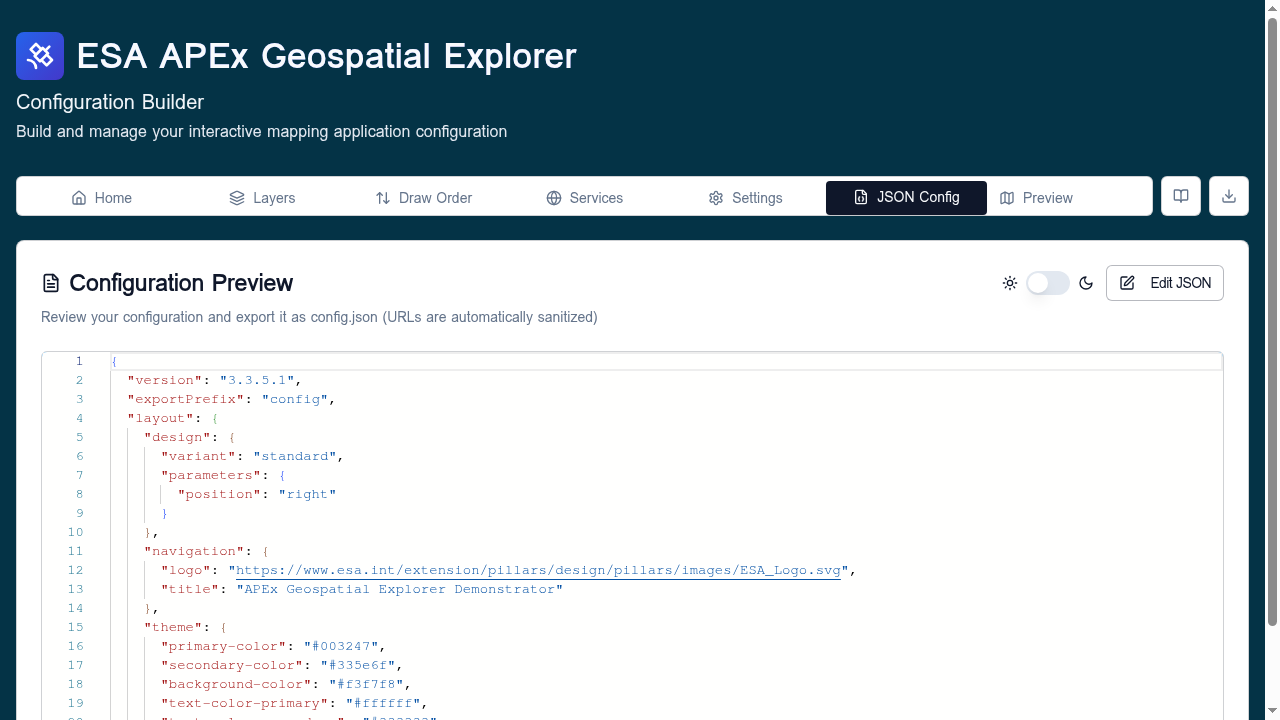
The tab has two modes: Preview (default, read-only) and Edit.
Preview mode
Shows the configuration as syntax-highlighted JSON. URLs are automatically sanitised — query strings and signed-URL parameters are stripped from the rendered preview.
The toggle next to the title switches between light and dark syntax themes, and Edit JSON enters edit mode.
The same JSON is also available at the /config.json route as plain
text, which is useful for fetching from scripts or piping into jq.
Edit mode
Click Edit JSON to switch to a free-form editor.
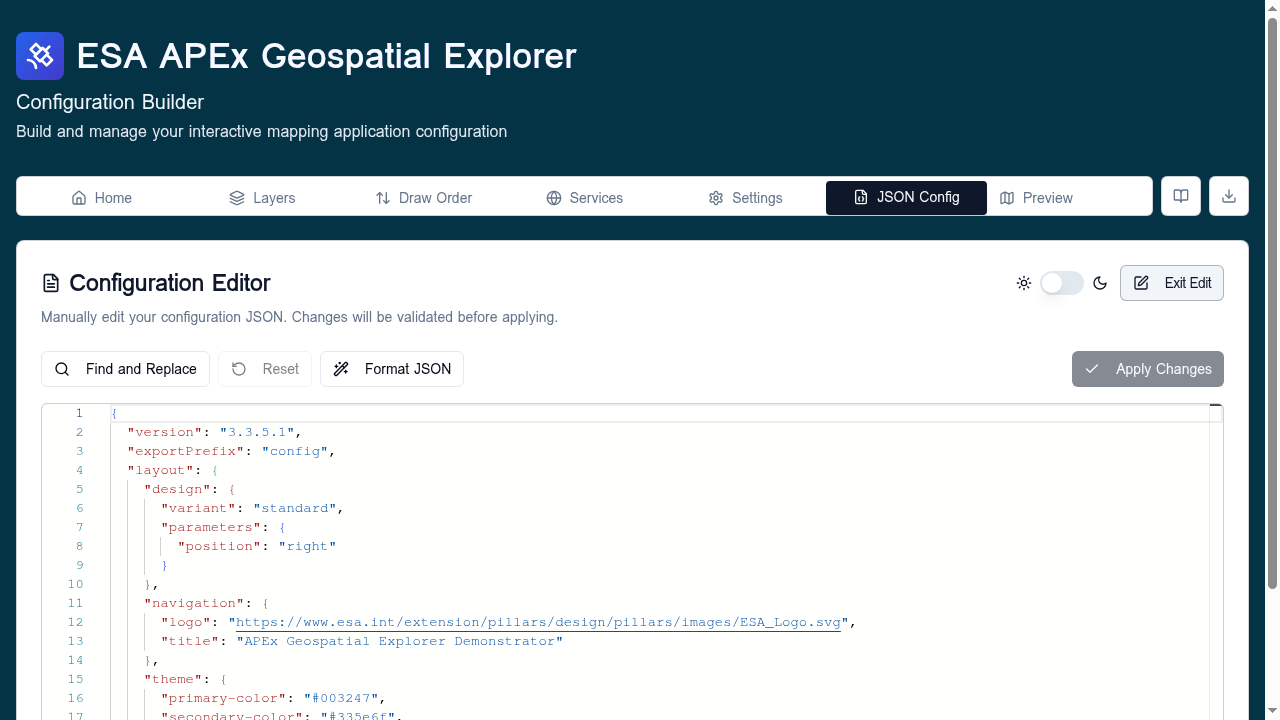
The toolbar provides:
- Find and Replace — opens a panel to search the buffer and optionally replace matches.
- Reset — discards edits and reloads the current in-memory config.
- Format JSON — pretty-prints the buffer (2-space indent).
- Apply Changes — validates the buffer against the configuration schema and, if valid, replaces the in-memory config.
- Exit Edit — returns to preview mode without applying changes.
Paste-to-load workflow
Edit mode is the recommended way to load a configuration that was emailed, pasted from a chat, or copied from another deployed Explorer:
- Click Edit JSON.
- Select all (Ctrl/Cmd + A) and paste the new JSON.
- Click Format JSON to normalise whitespace.
- Click Apply Changes.
If validation fails, the tab keeps your edits and shows the errors so you can fix them in place.
Schema validation
Apply Changes runs the buffer through the same Zod schemas the rest
of the app uses (MetaSchema, LayoutSchema, source/service schemas,
etc.). Validation is strict: unknown top-level fields are rejected, and
optional fields that fail their inner schema are reported with the path
that caused the failure.
For the canonical export workflow with optional sorting, see
Export options. For the read-only fetch endpoint,
visit /config.json on the deployed instance.